
CBRE has implemented the below guide to assist you in the use of Sine Pro and the Sine Kiosk when checking into a CBRE managed property

Prior to arriving at a CBRE managed property, all service providers must have completed the Pulse Connect general induction & Site-Specific Induction online. SINE will crosscheck that these inductions have been completed.
If you have not completed your Pulse Connect general induction & Site – Specific Induction in Pulse Connect you will be unable to Check-in via Sine.
Search for “Sine Pro” via the App Store or Google Play and download it for free. Sign up using the same mobile number, name and business name you have used for Pulse Connect and you’ll be all set to check in via the “Sine Pro” mobile App or Sine Kiosk upon arrival.
Note: This is a mandatory requirement when attending CBRE managed properties.



1. Open the Sine Pro app from your mobile device when you arrive at a CBRE Managed Property or alternatively by using the Sine Kiosk upon arrival.
2. During the check-in process, the Sine Pro app will automatically check to see you have completed your CBRE Pulse Connect General Induction. If you have not completed your general induction in Pulse Connect you will be unable to Check-in.
3. If checking in via the Sine Pro app, the CBRE Property will be displayed under the nearby property list, select the CBRE Property you would like to check into. If checking in via the Sine Kiosk the property will be pre-selected.
4. Complete the Visitor Check- in information page if you are a first time Sine Kiosk user.
5. Select the “Visitor Type” appropriate to the reason for your site visit. You will either require a “Permit to Work” or not.
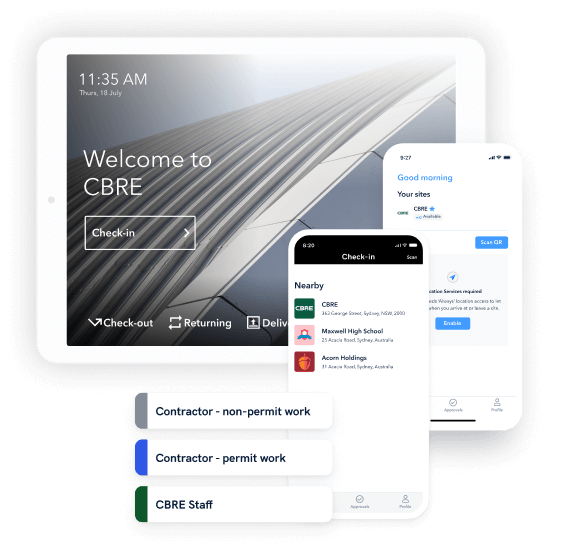
Prior to arriving onsite, all personnel intending to conduct works deemed by CBRE to be high-risk must complete a permit application online via the Sine Pro App. Your permit application will be assessed by a site facility manager and you will be notified via E-mail if your application has been approved or rejected.
This permit applies to all high-risk type works, including: Working at Heights, Roof Access, Access to Restricted Areas, Hot or Cold Works, Excavation and Trenches, Electrical, Confined Spaces, HazMat or HazSub.
As part of the Work Permit application, you will be asked to upload a SWMS or JSA that demonstrates the risk control measures that have been put in place in order to carry out these works in a safe manner. These can be uploaded in PDF, Word or as an image. You can also use your own CBRE approved SWMS / JSA templates.
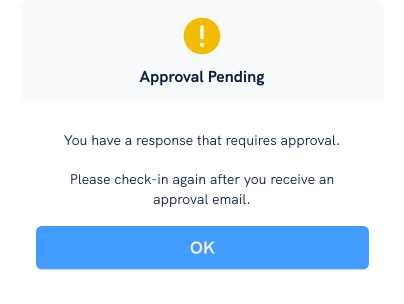
Once you have completed and submitted your Work Permit application you will receive an “Approval Pending” notification.
Once you have received the E-mail Approval you can complete your site Check-in and proceed with your workflow.
When leaving Site, you will need to check out, you can do this on the Sine Pro mobile app or at the Sine Kiosk. You will be asked to answer a short check out survey as part of this check out process.

Copyright 2025 - A Honeywell Company