
Sine is a visitor & contractor management system to help you save time and go paperless at the Department for Infrastructure and Transport (DIT).
Sine allows you to invite guests in advance to site. Sine is easy to set up and use. This guide will help you get started straight away and have you set up in minutes.

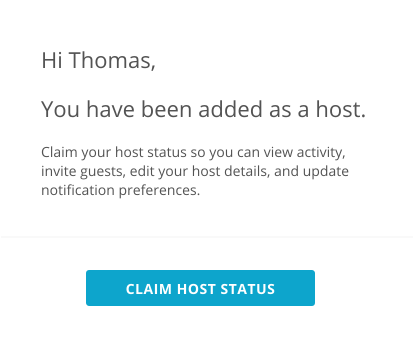
You will be sent an email from [email protected] a link to claim your Sine Host account. Please click the link within that email and follow the sign up process. If you don’t have an invite, contact your office administrator.
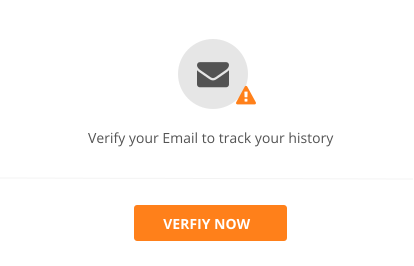
Once you are logged into your Sine Host account, please verify your email from your Profile page to ensure you can access the DIT account to invite guests. If you do not verify your email on Sine, you will not be able to invite guests.
Please download the Sine Pro App by scanning the QR code below with your mobile’s camera.



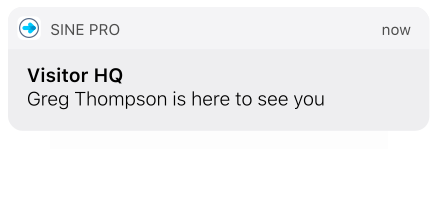
If you are a senior manager and would like to delegate your guest arrival notifications, you can turn off all notifications under your Sine profile and delegate notifications to your executive staff.

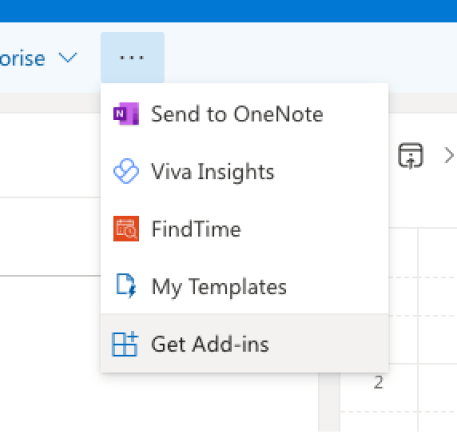
In your Outlook inbox, look for “Get Add-ins” in the toolbar.
In the new window that opens, search for “Sine” in the top right corner.
Click “Add” on the Sine for Outlook add-in.
If you have multiple calendars, ensure you are in the one linked to your Sine host email address.
Create an event as you normally would, select the Sine add-in from the toolbar.
Note: If this is your first time launching the add-in you will be prompted to log in using your Sine credentials.
Select the Site and Visitor Type, then enter the first and last name.
To send the invite, click Create Invitation.
For more information or support, visit our help article for the Sine for Outlook add-in.

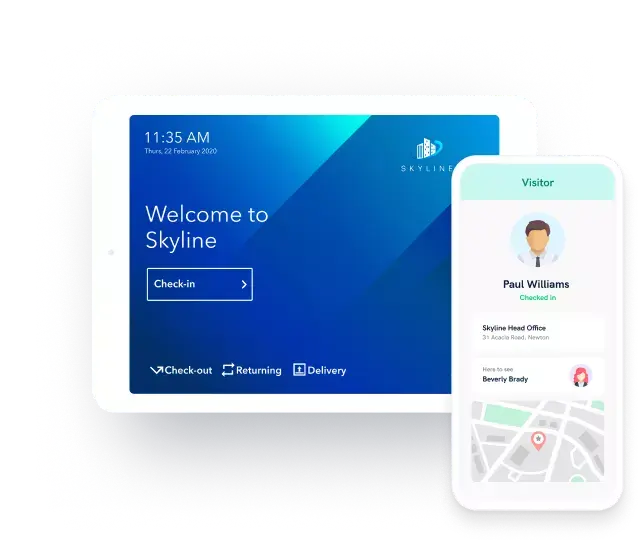
Visitors and contractors can check-in via an iPad located at your site, a web dashboard your team operates or via the SinePro mobile App for Android & iPhone.
Copyright 2025 - A Honeywell Company