
Sine is a visitor & contractor management system to help you save time and go paperless at SAPOL. This guide will help you get started straight away and have you set up in minutes.

The first time a contractor attends a site, they will need to complete the General Induction. This is a yearly induction that allows them to complete works based on reading and agreeing to SAPOL requirements.
The link below shows you what the contractor will be filling out. You can send this via your dashboard or it will automatically be sent via SMS to those 'Un-inducted' contractors.
There is also Asbestos Documentation that will be completed at the relevant sites and a Contractor Safety | Site Risk Exchange.

The paper-based books at all SAPOL Gyms are being replaced by a QR code sign-in option on your mobile.
Please download the Sine Pro App by scanning the QR code below with your mobile's camera.
You will be required to complete a yearly Gym Induction which can also be found below and answer some questions each time you visit the Gym.You will be auto checked-out when you leave the facility.The video below explains the process.

Visitors and contractors can check-in via an iPad located at your site, a web dashboard your team operates or via the SinePro mobile App for Android & iPhone.
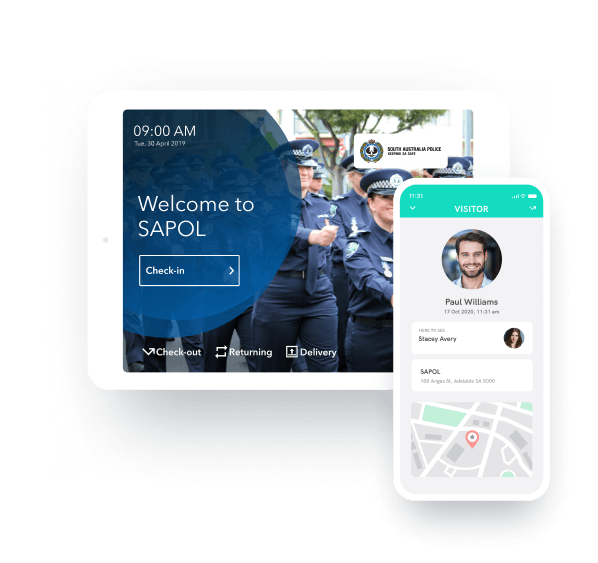
When a contractor checks-in – their visit will go into a pending stage. The front desk and security user at each site will be notified by email, can then go to the Sine dashboard, check the contractor's details against the SAPOL's 'Approved Contractors' list and then accept/ reject that visit by selecting the check-in marked 'pending', open it and hit accept or reject. Please see the link below for more instructions.
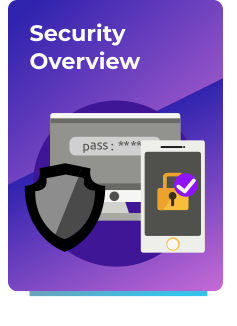
Looking to enhance security in your workplace? Here’s the key features you’ll want to setup.
An 'approved contractor' can be invited onsite to conduct works in the invites tab in your Sine dashboard.
For more information please see below.
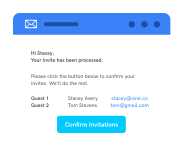
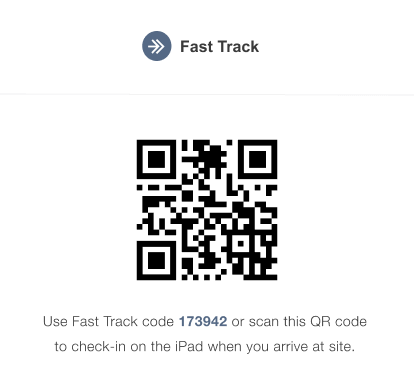
Now you are set up as a Host at SAPOL, you can invite guests to your meetings by following our easy-to-use help articles. Invites generated from the SineWeb Dashboard will allow invited guests to check in with a Fast Track Code.
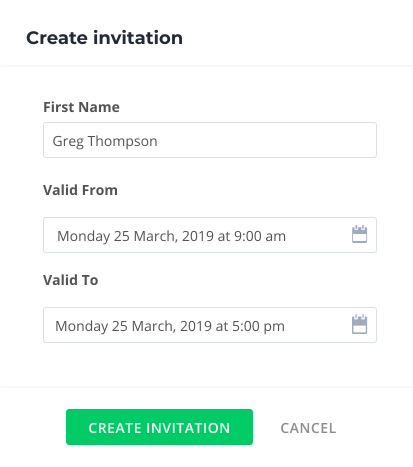
As a Host, visit the SineWeb Dashboard and invite visitors to SAPOL from the Invites menu on the sidebar. Full details for this process are available here.
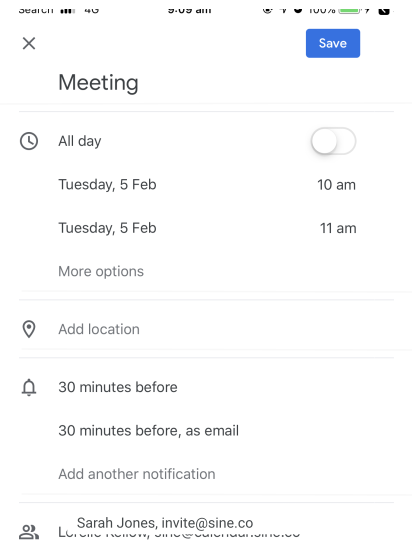
Creating an invite in Outlook or calendars? Simply add [email protected] to your calendar invites, along with other recipients and your guests will be automatically added to the front desk.
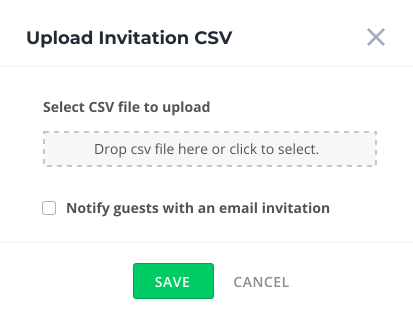
If you would like to invite larger groups for meetings or events, just use this template and upload it into your SineWeb dashboard to bulk upload all guests.
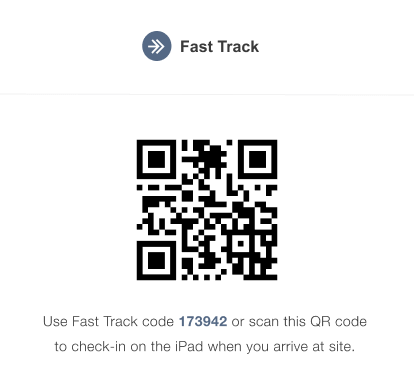
For invites generated from the SineWeb Dashboard or via CSV upload, your guests will receive an email invitation which they can save to their calendar; as well as a unique Fast Track Code to speed up their check-in process.
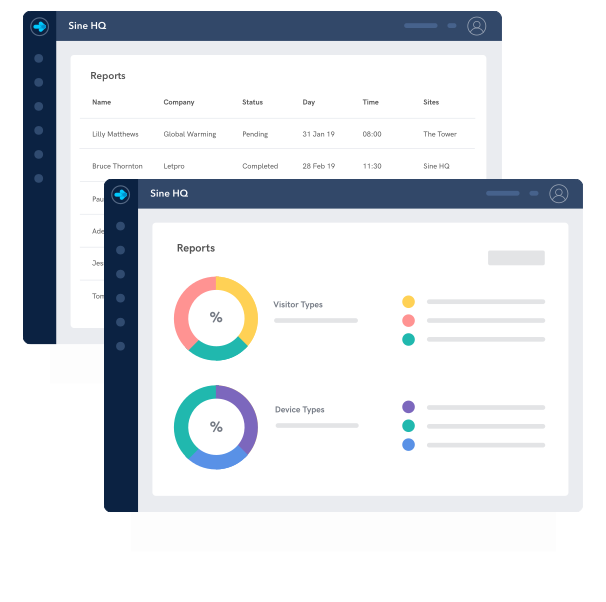
Sine can provide you powerful usage insights and reporting, make sure you're using them to their full potential with our guide on reports.
Copyright 2025 - A Honeywell Company